I imported all my research papers into Zotero folder by folder using my Zotero Folder Drop Importer plugin.
That part worked well. Every folder became a collection and every PDF landed inside the right collection.
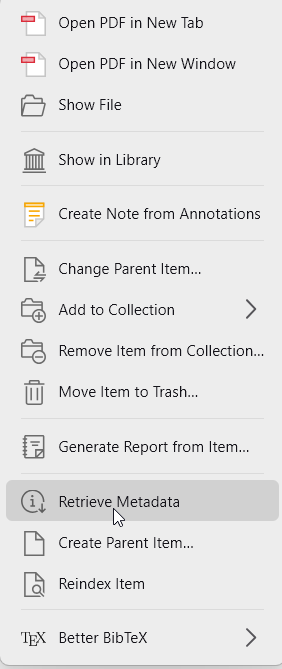
Then I ran Retrieve Metadata on the PDFs, and I lost something I actually needed.
The Problem
My PDFs were numbered.
Something like:
001 Paper Title.pdf
002 Another Paper.pdf
003 One More Paper.pdf
That number is not decoration for me. It is how I find a paper quickly.
When I write my thesis in MS Word and use the Zotero plugin to insert a citation, I do not want to remember the full title of every paper. I type the number, the paper shows up, and I cite it. That is much faster than scrolling through a long list of similar sounding titles.
Retrieve Metadata is still worth running, because it gives me the proper author, journal, year and DOI instead of a filename. But once it runs, Zotero creates a parent item from the real metadata and the item is now called by its actual title.
The number is gone from what I see in the list.
So I had metadata, but I lost the fast way of finding papers.
Looking For a Place to Store the Number
I asked ChatGPT what field I could use for this, and the suggestion was Call Number.
That turned out to be a good fit.
Call Number is a normal Zotero field, it is available for most item types including journal articles, it shows up as a sortable column in the middle pane, and it is searchable from the Word plugin citation box.
It is also a field I was not using for anything else, so nothing gets overwritten.
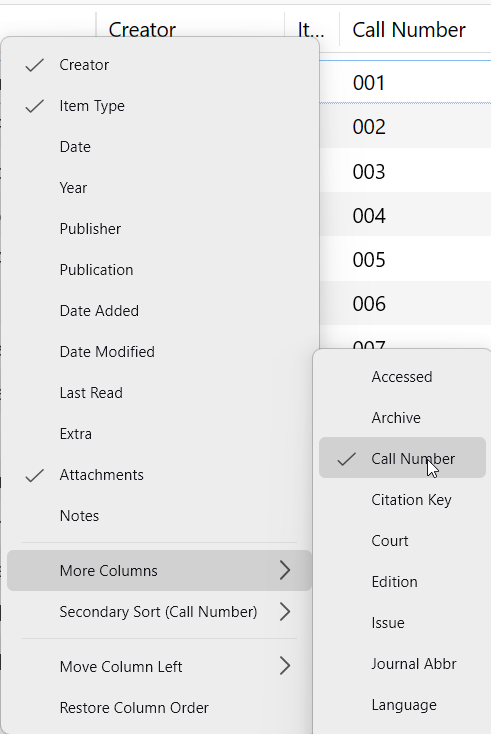
To show the column, right click on the column header in the middle pane, go to More Columns, and tick Call Number.
Filling It In Without Doing It By Hand
I have a few hundred PDFs, so typing the numbers manually was not going to happen.
The good news is that the number was still sitting there on disk. Retrieve Metadata changed how the item is displayed, but the PDF file itself was still named 001 Paper Title.pdf.
So I copied the file paths of my PDFs to confirm the numbers were still there, and then used a script to read the number straight off the filename and write it into Call Number.
You run it inside Zotero at:
Tools → Developer → Run JavaScript
Tick Run as async function before running it.
The Script
This script is an example, not a finished tool. It assumes your files are named like
001 Paper Title.pdf, because that is how mine are named. Yours are almost certainly named differently.
The easiest way to get a version that fits your library is to let an AI adjust it for you.
In Zotero, right click one of your PDFs and choose Show File, then copy the full path of that file. Paste the path into ChatGPT or Claude along with the script below, and ask it to change the pattern so it picks up the number from your filenames.
That is exactly how I got mine. I gave it my real path, it gave me back a script that matched my naming.
Select the items you want to number in the middle pane first, then run this:
var pane = Zotero.getActiveZoteroPane();
var items = pane.getSelectedItems();

var callNumberField = Zotero.ItemFields.getID('callNumber');
var done = 0;
var skipped = [];

for (let item of items) {
    if (item.isAttachment() || item.isNote()) continue;

    // find the first attachment that actually has a file
    let path = null;
    for (let id of item.getAttachments()) {
        let att = await Zotero.Items.getAsync(id);
        let p = await att.getFilePathAsync();
        if (p) { path = p; break; }
    }
    if (!path) { skipped.push(item.getField('title')); continue; }

    // take the leading number from the filename, for example "001 Paper.pdf"
    let filename = path.split(/[\\/]/).pop();
    let match = filename.match(/^\s*(\d+)/);
    if (!match) { skipped.push(filename); continue; }

    let itemTypeID = Zotero.ItemTypes.getID(item.itemType);
    if (!Zotero.ItemFields.isValidForType(callNumberField, itemTypeID)) {
        skipped.push(item.getField('title'));
        continue;
    }

    item.setField('callNumber', match[1].padStart(3, '0'));
    await item.saveTx();
    done++;
}

return `Call numbers set: ${done}\nSkipped: ${skipped.length}\n\n` + skipped.join('\n');
It prints a small summary at the end so you can see what it did and what it could not do.
If the Filenames Were Already Renamed
If Zotero has already renamed your attachment files, the number is not on disk anymore and the script above has nothing to read.
In that case you can number the items in the order they are currently sorted.
Sort the middle pane the way you want, select the items, and run this:
var pane = Zotero.getActiveZoteroPane();
var items = pane.getSelectedItems();

var callNumberField = Zotero.ItemFields.getID('callNumber');
var nextNumber = 1;
var done = 0;

for (let i = 0; i < items.length; i++) {
    let item = items[i];
    if (item.isAttachment() || item.isNote()) continue;

    let itemTypeID = Zotero.ItemTypes.getID(item.itemType);
    if (!Zotero.ItemFields.isValidForType(callNumberField, itemTypeID)) continue;

    item.setField('callNumber', String(nextNumber).padStart(3, '0'));
    await item.saveTx();
    nextNumber++;
    done++;
}

return `Call numbers set: ${done}`;
Change nextNumber if you want the numbering to begin somewhere other than 1.
A Warning Before You Run It
This writes to your library, so back up first.
Zotero keeps everything in a zotero.sqlite file inside your data directory. Close Zotero, copy that folder somewhere safe, then open Zotero again and run the script. If something goes wrong you can put the copy back.
I would also test on one collection before running it on the whole library.
What I Have Now
Retrieve Metadata gives me clean bibliographic data.
Call Number gives me back my own numbering.
When I am writing in MS Word and need a citation, I type the number in the Zotero box and the right paper appears immediately. That is the part I did not want to lose, and now I do not have to choose between proper metadata and my own ordering.
It pairs well with the way I read the papers themselves, which I wrote about in my note on using long prompts in NotebookLM. And when compiling the thesis draft in Word, I also wrote a quick note on finding all abbreviations in Microsoft Word at once using a small VBA macro.