I was following an Apache Spark tutorial in Azure Databricks.
Databricks automatically creates and provides a SparkSession variable (spark) when you attach a notebook to compute. You do not need to build one manually. You can execute PySpark code right away.
I typed spark into a notebook cell and ran it.
The output looked completely different from the tutorial video.
The tutorial showed full SparkSession details, including SparkContext and Spark UI links. My notebook only printed a plain object reference:
<pyspark.sql.connect.session.SparkSession object at 0x7a4bb7307e60>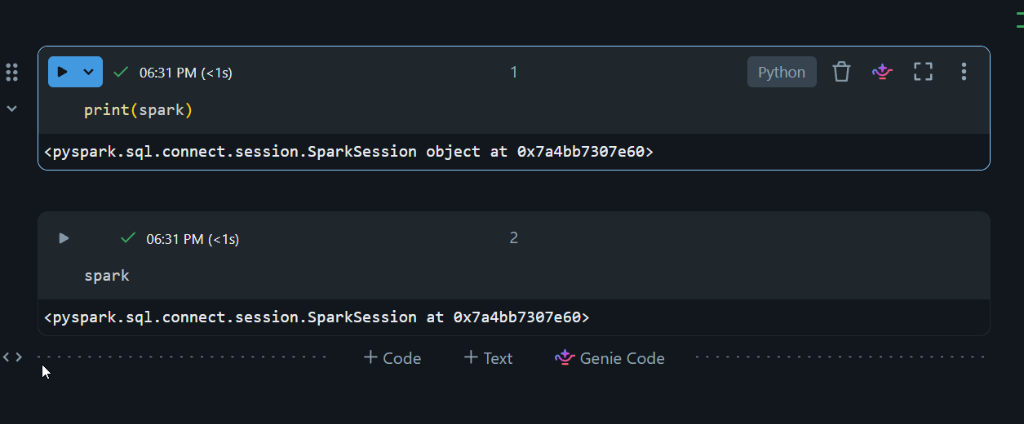
Why Was This Happening?
I checked my compute settings to see what was going on.
My all-purpose cluster was using Standard access mode.
In newer Databricks runtimes, Standard mode defaults to Spark Connect.
Spark Connect uses a thin client-server architecture. It communicates with the Spark cluster over gRPC.
Spark Classic runs directly against the driver JVM. It gives you direct access to lower-level Spark APIs.
Why Did I Switch to Dedicated?
Standard mode works fine for regular data engineering tasks. It handles DataFrames, SQL queries, transformations, and actions without problems.
I wanted to understand how Spark actually works under the hood. I did not want to stop at high-level PySpark code.
Here is what I wanted to do:
- Explore SparkContext: Understand the main entry point to Spark’s lower-level internals.
- Practice RDD operations: Run distributed collection methods like
parallelize()andmap(). - Explore Spark UI: Inspect jobs, stages, tasks, and query execution details directly.
- Access debugging tools: Check driver and executor logs to see how Spark executes tasks.
- Follow classic Spark examples: Run code demonstrations that rely on
scand RDD APIs without errors.
Standard mode disables direct RDD APIs and SparkContext. Dedicated mode supports both.
How Did I Switch to Dedicated Access Mode?
I updated the cluster access settings in the Databricks UI:
- Go to Compute.
- Select your cluster.
- Click Edit.
- Scroll down and expand Advanced.
- Under Access mode, switch from Auto (Standard) to Manual (Dedicated).
- Click Confirm and restart to apply the configuration.
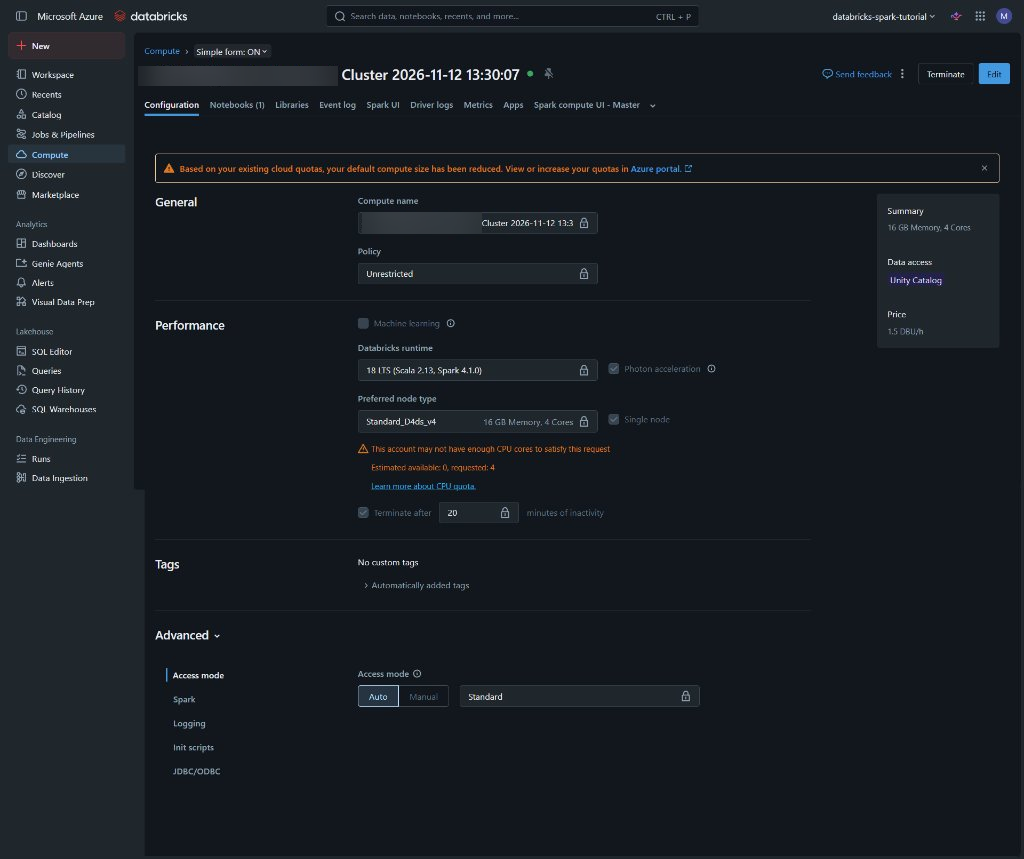
After the cluster restarted, I ran spark again:
sparkThis time, the notebook printed the complete session summary:
SparkSession - hive
SparkContext
Spark UI

Version
    v4.1.0
Master
    local[*, 4]
AppName
    Databricks Shell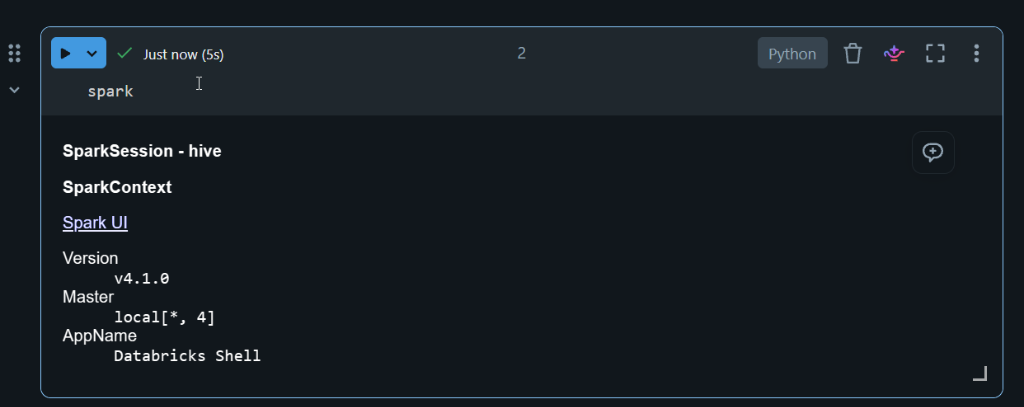
What Did I Learn?
My original setup was not broken. The difference came down to the cluster access mode.
Here are my main takeaways:
- Standard is not broken, just decoupled: Standard mode uses Spark Connect. Dedicated mode gives you a classic Spark driver session.
- Dedicated is not automatically better: Standard mode is recommended for production workloads and shared team environments. It provides better security and workload isolation.
- Dedicated is great for learning: It gives full access to
SparkContext, RDD APIs, and classic Spark internals. - Understanding
local[*, 4]: The master stringlocal[*, 4]means my Spark session is running in single-node mode. It uses 4 local CPU cores on one virtual machine rather than worker nodes across a distributed cluster.
For now, I will keep using Dedicated mode while exploring Spark architecture and RDD internals. Once I finish these lower-level tutorials and build real data pipelines, I will switch back to Standard mode.