I had my Databricks workspace and Spark compute running, but I wanted to understand where the actual data lives. What happens to my CSV files and processed data when the cluster is terminated?
I’m learning Apache Spark 4 for Azure data engineering. I’d already worked through the workspace setup and started learning how Spark runs a job. This time I wanted to follow the data itself. Azure Databricks workspace setup · How Spark runs a job.
Spark can keep intermediate results in memory while a job runs. That memory goes away when the cluster terminates. Files already written to ADLS stay in storage and can be read by another cluster later. I can shut down compute between jobs and start it again when there’s more work.
Azure can still charge for the storage those files occupy while Spark is stopped. I can check how much of my Azure for Students credit remains in the Azure Sponsorships portal. Microsoft Learn: Azure for Education FAQ.
For my planned Melbourne Pedestrian Data Pipeline, I’d like to keep a copy of the original pedestrian counts. If I change how I handle missing values, I can rerun the cleaning job from the original files. The older inputs would still be there when I start a new cluster.
What Is a Data Lake?
I think of a data lake as a place to keep data in different formats. For pedestrian counts, that could mean rows with a timestamp and count in a CSV. JSON responses with nested fields are semi-structured. Images and recordings are examples of unstructured files. They can all live in the same storage system.
One way I could organize that project is:
pedestrian-counts/
  raw/        Original CSV downloads
  cleaned/    Validated records in Parquet
  analytics/  Hourly totals by sensor
Those names describe folders in storage. Later I can define Unity Catalog schemas and tables to organize and query the datasets. A folder name alone has no effect on the catalog.
ADLS Gen2 adds data lake capabilities to Azure Blob Storage. The setting I cared about was hierarchical namespace (HNS). With a flat namespace, a slash is part of the blob name. With HNS, directories are first-class objects. Azure can rename an entire directory in one operation. That matters for Spark jobs that write many files to a temporary directory and then rename it when they finish.
Setting Up ADLS Gen2
The Storage Account I Created
| Setting | Value |
|---|---|
| Subscription | Azure for Students |
| Resource group | ApacheSparkTutorial |
| Storage account | sparktutorialstorage |
| Region | Korea Central |
| Performance | Standard |
| Hierarchical namespace | Enabled |
I used the same resource group as my Hybrid workspace, databricks-spark-tutorial, to keep the resources for this lab together. I kept storage in Korea Central to match the workspace and avoid cross-region data transfers.
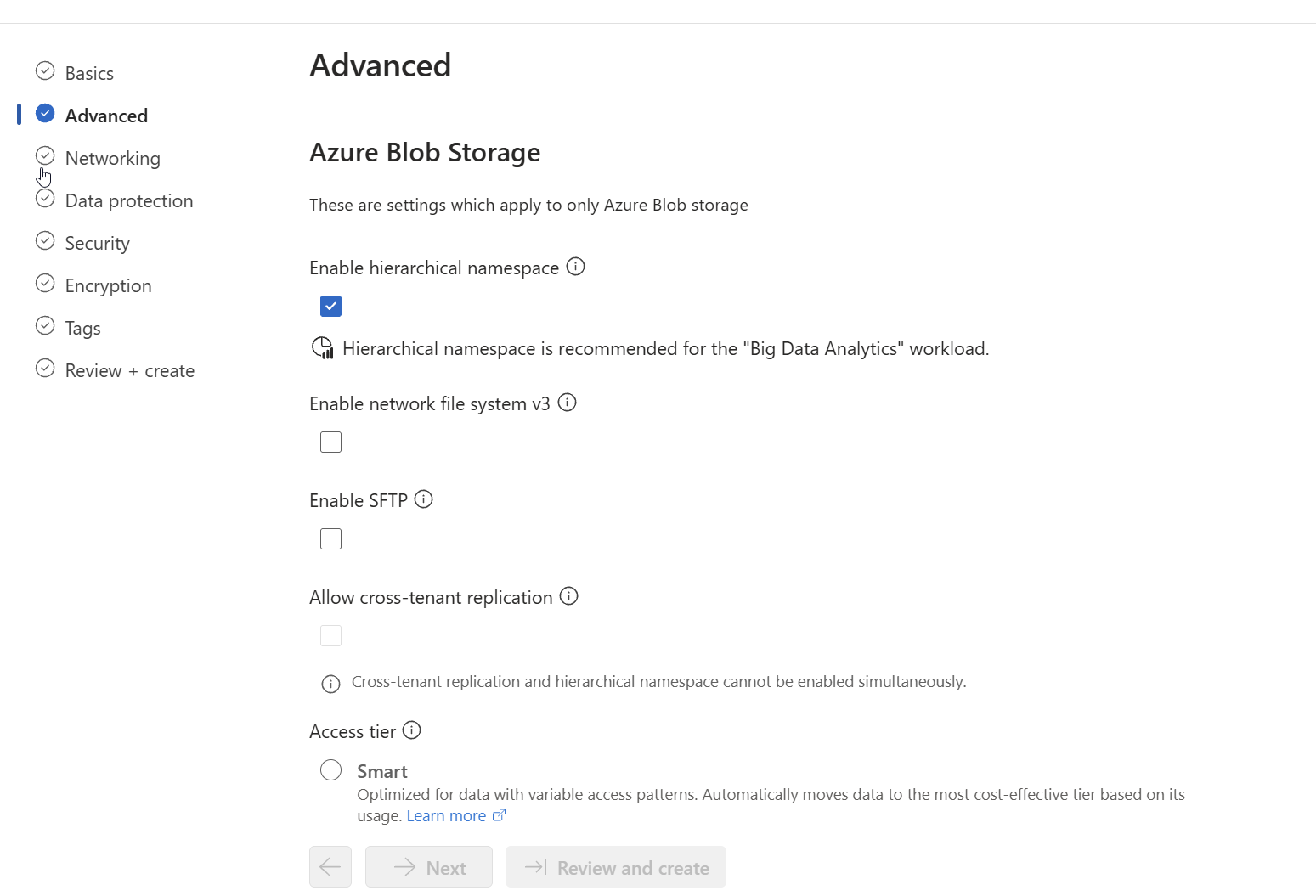
Databricks already has workspace storage in ManagedApacheSparkTutorial. I created a separate account for project data so I could set its permissions and storage layout myself. In the Azure Portal, I picked Big Data Analytics as the primary workload and enabled HNS on the Advanced tab.
Creating the metastore Container
I created a private container named metastore. This is how I found it when I went back to Azure:
Azure for Students
└── ApacheSparkTutorial
    ├── databricks-spark-tutorial (workspace)
    ├── sparkconnector (Access Connector)
    └── sparktutorialstorage (storage account)
        └── metastore (private container)
            └── Directories and files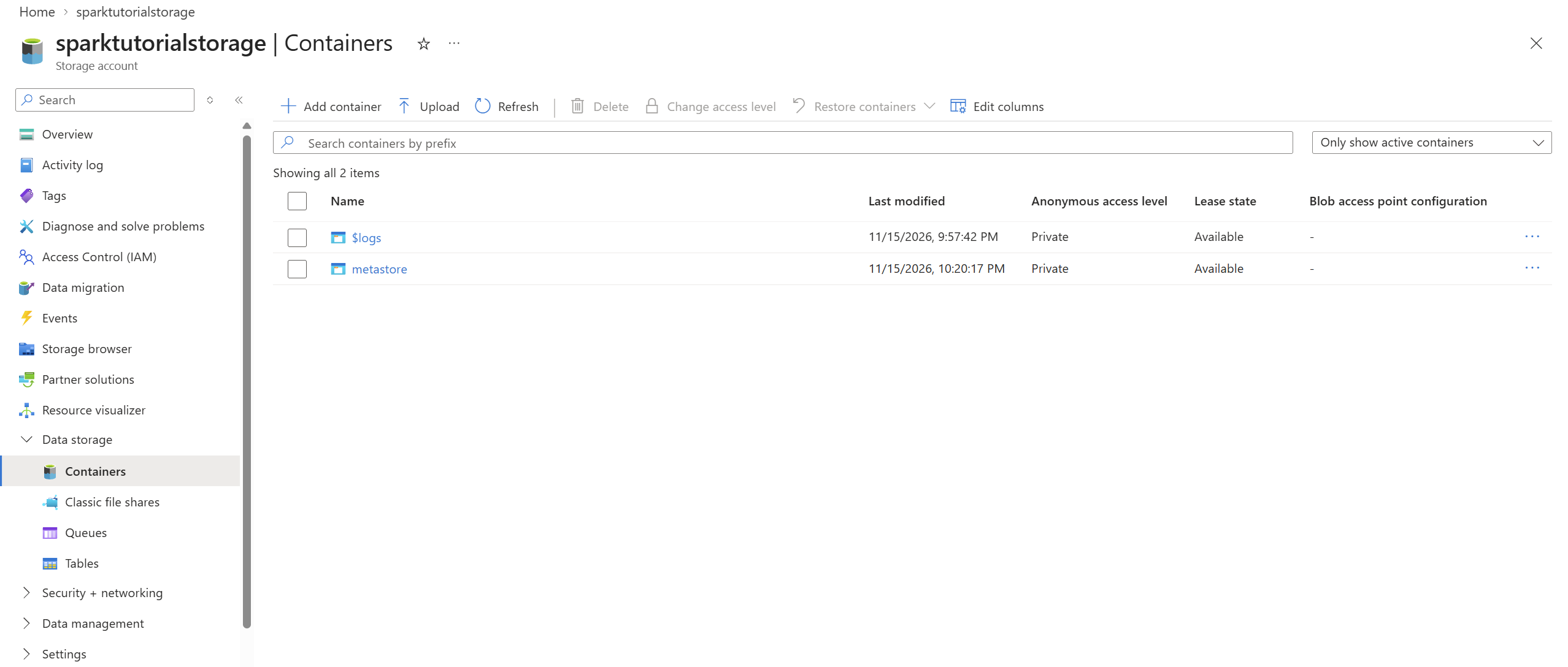
I called the container metastore because that’s the name I was following in the course. I could have picked another valid name. It holds the actual files for whatever I configure to use it. The Unity Catalog metastore is a separate Databricks object that holds metadata and governs access.
Creating an Access Connector for Azure Databricks
I pictured ADLS as a locked warehouse. Before Azure can decide what Databricks can do inside, it needs an identity it can recognize. The Access Connector gives Databricks a managed identity it can use to authenticate to Azure Storage. Spark reads the files through authorized storage access. The connector handles identity.
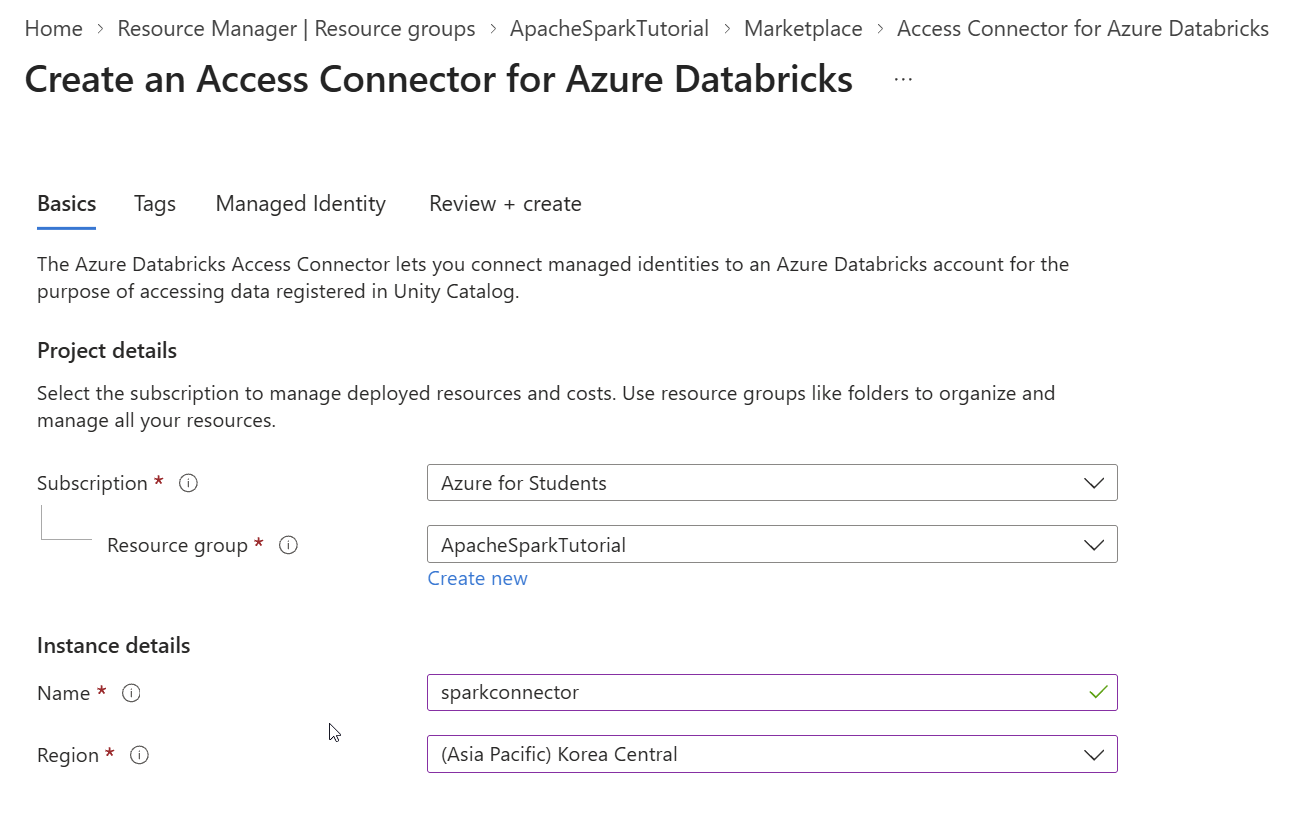
In the Azure Portal, I searched for Access Connector for Azure Databricks. I named it sparkconnector, selected ApacheSparkTutorial and Korea Central, and deployed it from Review + create. A system-assigned managed identity belongs to the Azure resource that created it. Azure manages the credentials, so I can keep storage keys and passwords out of notebooks.
Setting Up Storage Permissions in Azure IAM
Creating the connector gave me an identity. I still had to give it permission to work with blobs. Authentication answers who is making the request. Authorization answers what that identity can do.
I opened sparktutorialstorage and went to Access Control (IAM) → Add role assignment. I selected Storage Blob Data Contributor. On the Members tab, I chose Managed identity, selected Access Connector for Azure Databricks, and assigned the role to sparkconnector.
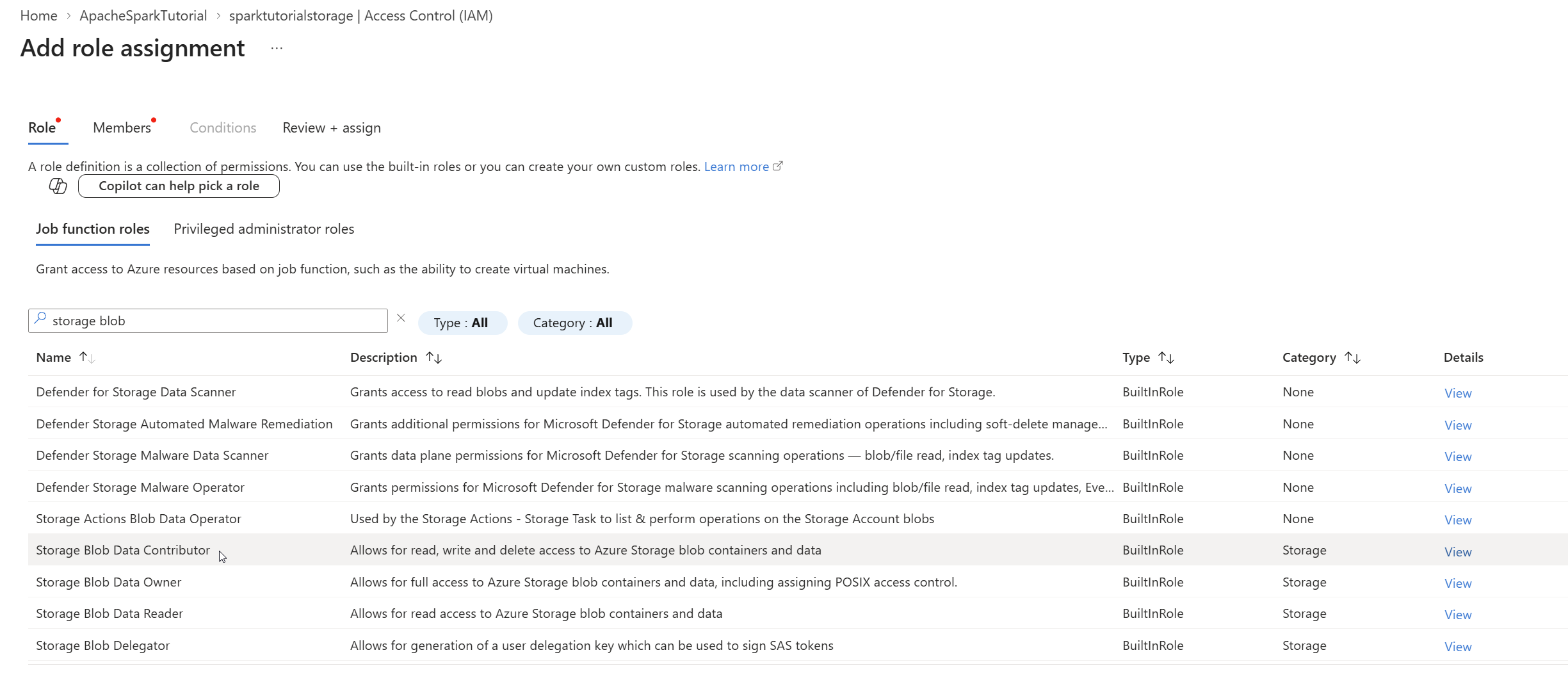
I assigned the role at the storage account because this account is for the lab. It gives the identity permission to read, write, and delete blob data across its containers. For a shared production account, I’d look at the container scope so the identity only gets access to the data it needs.
Azure IAM controls what the identity can do in Azure. Unity Catalog privileges control who can use the storage location or work with catalog objects in Databricks. Creating the Azure role assignment took care of the first layer.
Choosing Managed Storage for My Catalog
My instructor used the Databricks Account Console to set an ADLS path as the default storage for a Unity Catalog metastore. I didn’t have the same account admin access, so I checked what my workspace already had. It was attached to metastore_azure_koreacentral and already had a catalog called databricks_spark_tutorial.
Unity Catalog metastore
└── Catalog
    └── Schema
        └── Table
A catalog groups schemas. A schema can hold tables and other objects, such as views and volumes. Unity Catalog keeps information such as a table’s name, columns, and permissions. The data files for a managed table live in the storage Unity Catalog assigns to it.
| Where storage is set | What it controls |
|---|---|
| Metastore | Provides a default for catalogs that don’t specify their own managed storage. |
| Catalog | Sets the managed storage for that catalog, unless a schema specifies its own. |
My existing metastore had no default storage root. Microsoft documents this as the default for metastores that Databricks creates automatically. A metastore can govern catalogs without a shared root. Without a metastore default to inherit, a new standard catalog needs a managed location of its own. I chose a catalog path to give sparkcatalog its own space inside the container. Microsoft Learn: Manage Unity Catalog metastores.
Creating a Unity Catalog Storage Credential
Azure could authorize the connector’s identity after I assigned the IAM role. Databricks still needed a way to choose that identity when it accessed my storage. The storage credential is the Unity Catalog object that records that choice.
In Catalog Explorer, I went to Credentials → Create credential. I named it sparkconnector_credential, chose Azure Managed Identity, and linked it to sparkconnector. I kept the existing default credential in place. My named credential gives me a clear reference when I set up access to this project.
Validating an External Location
In Catalog Explorer, I opened External Locations → Create external location.
| Setting | Value |
|---|---|
| Name | spark_external_location |
| Storage type | Azure Data Lake Storage |
| URL | abfss://metastore@sparktutorialstorage.dfs.core.windows.net/ |
| Storage credential | sparkconnector_credential |
I built the URL from the container name and the storage account name. The abfss:// scheme tells the Azure Blob Filesystem driver to use a secure connection. The container goes before the @. The storage account goes after it, followed by the ADLS Gen2 endpoint .dfs.core.windows.net. With nothing after the final slash, the URL covers the container root. I can append a directory to point at a smaller part of it.
The external location pairs that path with the credential. Since mine covers the root, I can choose a subdirectory for managed storage when I create my catalog. Unity Catalog can check privileges on the named location.
File Events Returned HTTP 403
Read, List, Write, Delete, Path Exists, and Hierarchical Namespace Enabled all passed. File Events Resource Provision and File Events Resource Teardown both failed with HTTP 403 AuthorizationFailure. Azure allowed the file operations and refused the separate requests to set up or remove event infrastructure.
File Events let an ingestion job discover new arrivals through notifications. In Azure, that involves Event Grid subscriptions and a storage queue. Automatic setup needs permissions to manage event subscriptions and work with the queue. The blob role I assigned covers file operations. The validation result alone didn’t tell me exactly which extra permission was missing.
I used Force create the location so I could finish setting up the external location for this lab. File Events remain disabled. The checks confirmed that the external location could access the storage. My first read and transformation in a Spark notebook is still ahead.
How Everything Connects
| Part | The job it does |
|---|---|
| ADLS Gen2 container | Keeps the files after compute stops. |
| Access Connector and IAM | Provide a managed identity and grant it access in Azure. |
| Storage credential | Tells Unity Catalog which identity to use. |
| External location | Associates an ADLS path with that credential. |
| Unity Catalog and Spark | Govern access to data and run the code that processes it. |
I trace access from the connector’s managed identity to its Azure IAM role, then to the storage credential that references that identity. The external location pairs the credential with the ADLS path. Unity Catalog governs access to that location. Spark compute communicates with Azure Storage for file reads and writes.
Creating My First Databricks Catalog
Once I had validated the external location, Unity Catalog had a path and a credential it could use to access ADLS. I still needed a catalog to organize my schemas and give their future managed data a storage root. For example, sparkcatalog.pedestrians.hourly_counts would be a table called hourly_counts in the pedestrians schema. Both would sit under sparkcatalog in the metastore_azure_koreacentral metastore. The metastore sits above the three parts of the table name.
I opened Catalog Explorer → Create catalog and entered these settings.
| Setting | Value |
|---|---|
| Metastore | metastore_azure_koreacentral |
| Catalog name | sparkcatalog |
| Catalog type | Standard |
| External location | spark_external_location |
| Storage account | sparktutorialstorage |
| Container | metastore |
| Catalog managed storage subpath | sparkcatalog/ |
A Standard catalog is the regular Unity Catalog catalog for organizing assets such as tables, views, and volumes. I picked my external location because it already points to my ADLS container and uses the credential I validated. The sparkcatalog/ subdirectory gives this catalog a dedicated root inside the container for future managed tables and volumes.
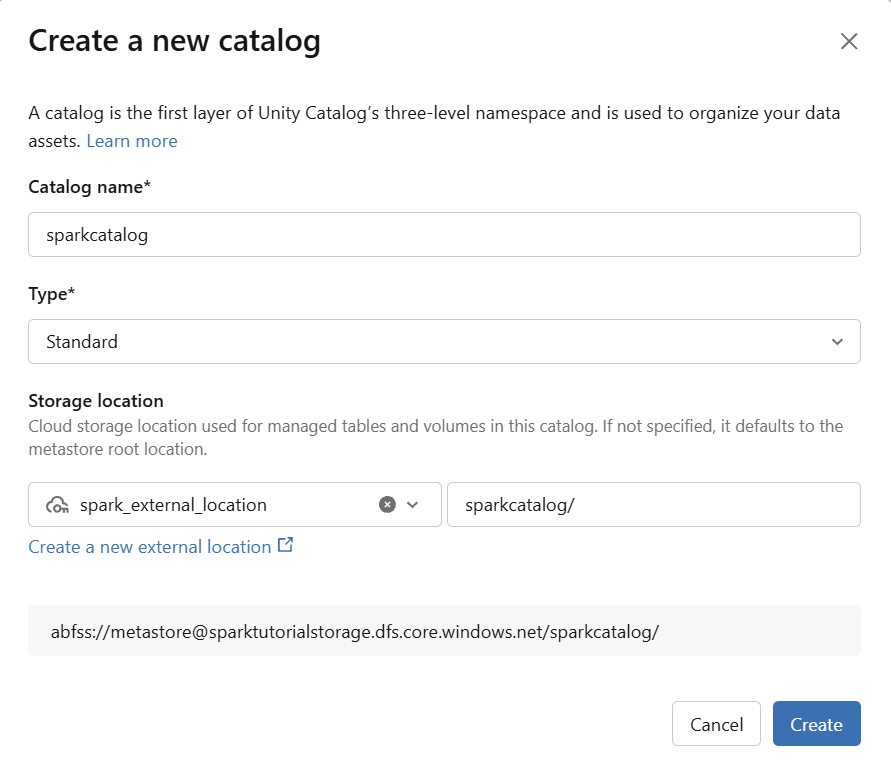
The resulting managed storage path was abfss://metastore@sparktutorialstorage.dfs.core.windows.net/sparkcatalog/. This setup requires CREATE CATALOG on the metastore and CREATE MANAGED STORAGE on the external location.
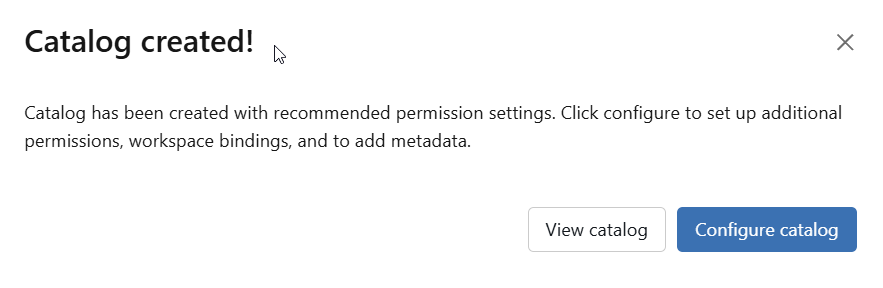
I clicked Create, and Databricks confirmed the catalog was created. I opened Configure catalog to review access and metadata.
Configuring Access and Metadata
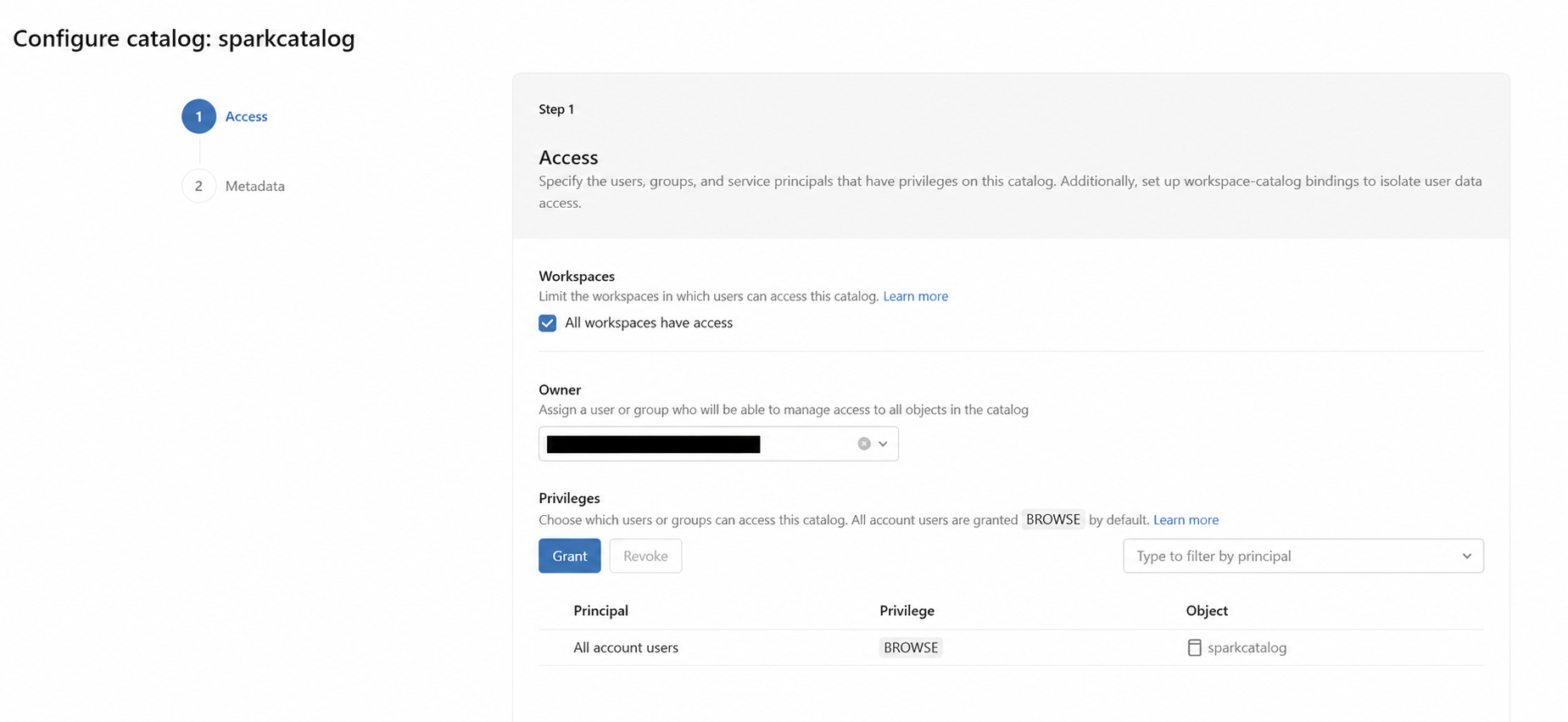
| Setting | How I read it |
|---|---|
| Owner | The user or group responsible for managing the catalog and its grants. |
| Workspaces | Which workspaces attached to the metastore can use the catalog. |
BROWSE |
Lets users discover the catalog and see metadata. Reading table data requires additional privileges. |
| Privileges | Grants that control what users, groups, and service principals can do. For example, reading a table needs USE CATALOG, USE SCHEMA, and SELECT. |
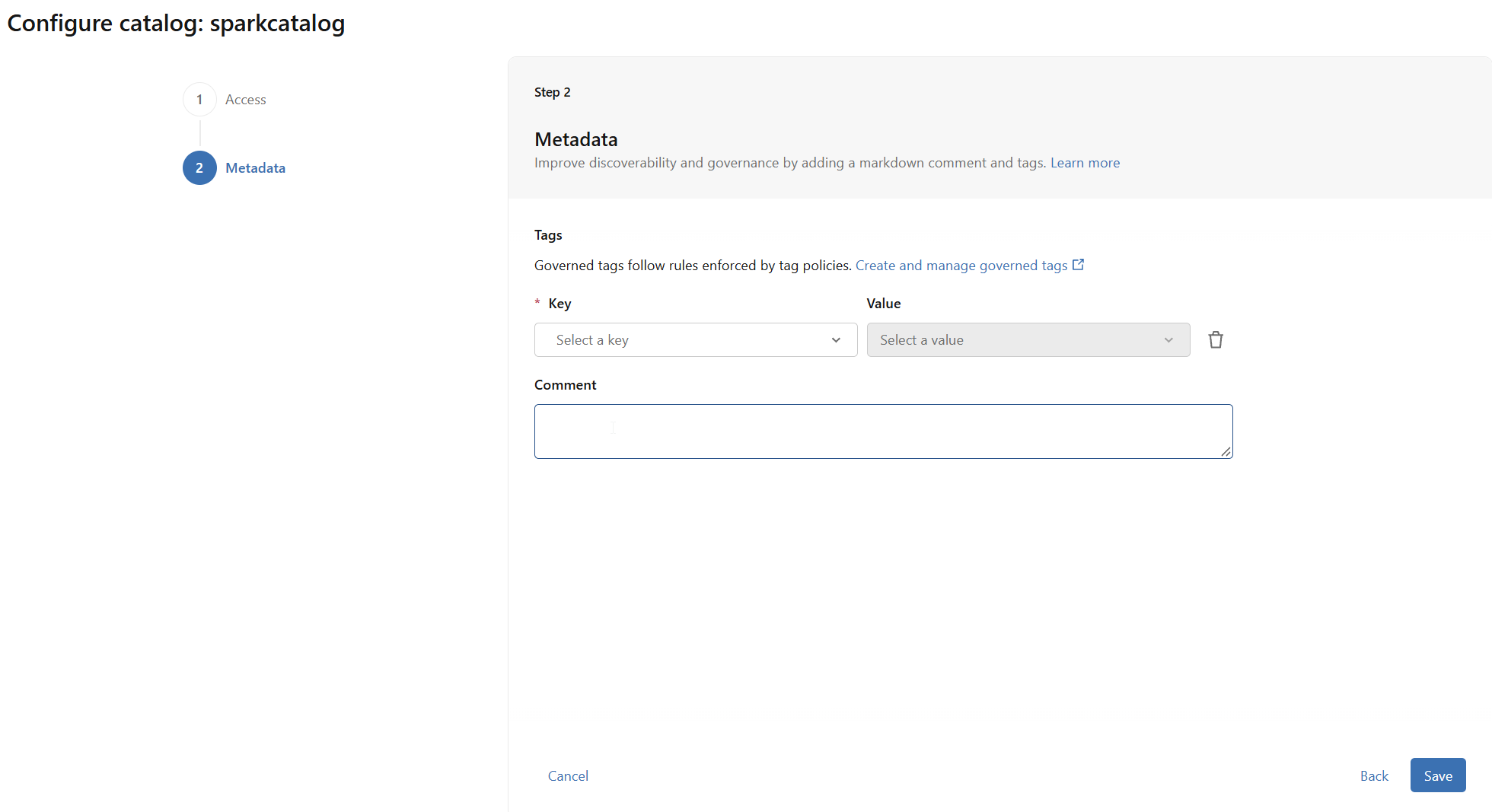
The Metadata step gives me a place to describe what the catalog is for and add tags that make it easier to find later. I’m still verifying those settings and the access grants. Microsoft Learn: Create catalogs.
Catalog Explorer shows default and information_schema. Databricks created both schemas automatically. The catalog creation step registered the catalog and its managed storage setting. Writing a dataset to a managed table is the step that will put my data files in ADLS.
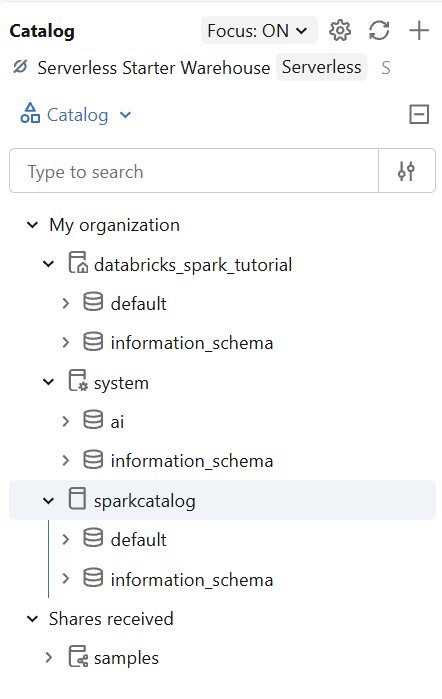
Checking the Catalog’s Managed Storage
The sparkcatalog/ path is the catalog’s storage root. Unity Catalog assigns an internal location under it, such as __unitystorage/catalogs/<id>/, and manages the layout for table data. When I create a managed table, I’ll read and write it by name, such as sparkcatalog.default.orders, and leave its ADLS files to Unity Catalog. Microsoft Learn: Managed storage locations · Microsoft Learn: Accessing data in cloud storage.
To verify the setup, I’ll open sparkcatalog in Catalog Explorer, go to Details, and compare the storage root with the ADLS path I entered. I’ll also try these read-only SQL commands to inspect catalog properties and list the schemas I can see. Microsoft Learn: Explore database objects.
DESCRIBE CATALOG EXTENDED sparkcatalog;
SHOW SCHEMAS IN sparkcatalog;
Next Steps
- Finish verifying the catalog’s access and metadata settings.
- Create my first schema in
sparkcatalog. - Create a managed Delta table in that schema.
- Write and read a small dataset in PySpark, then run a transformation and check the result.
- Verify that the table’s data files are stored in my ADLS Gen2 account.
What I Finally Understood
I thought I had to change the metastore’s ADLS root because that was the step my instructor demonstrated. Metastore storage is optional. I could use the metastore already attached to my workspace and set managed storage on my own catalog. Keeping the container named metastore separate from the Databricks metastore in my head helped it click.
The whole setup follows this order. My progress has reached the catalog.
ADLS Gen2 → Container → Access Connector → IAM → Storage Credential
→ External Location → Catalog → Schema → Table
The arrows show the order in which I set up the resources and permissions. When I run a Spark job, the compute reads or writes the data in Azure Storage. The identity and Unity Catalog settings authorize that access.